Showing posts with label File Handling. Show all posts

Saturday, 23 August 2014

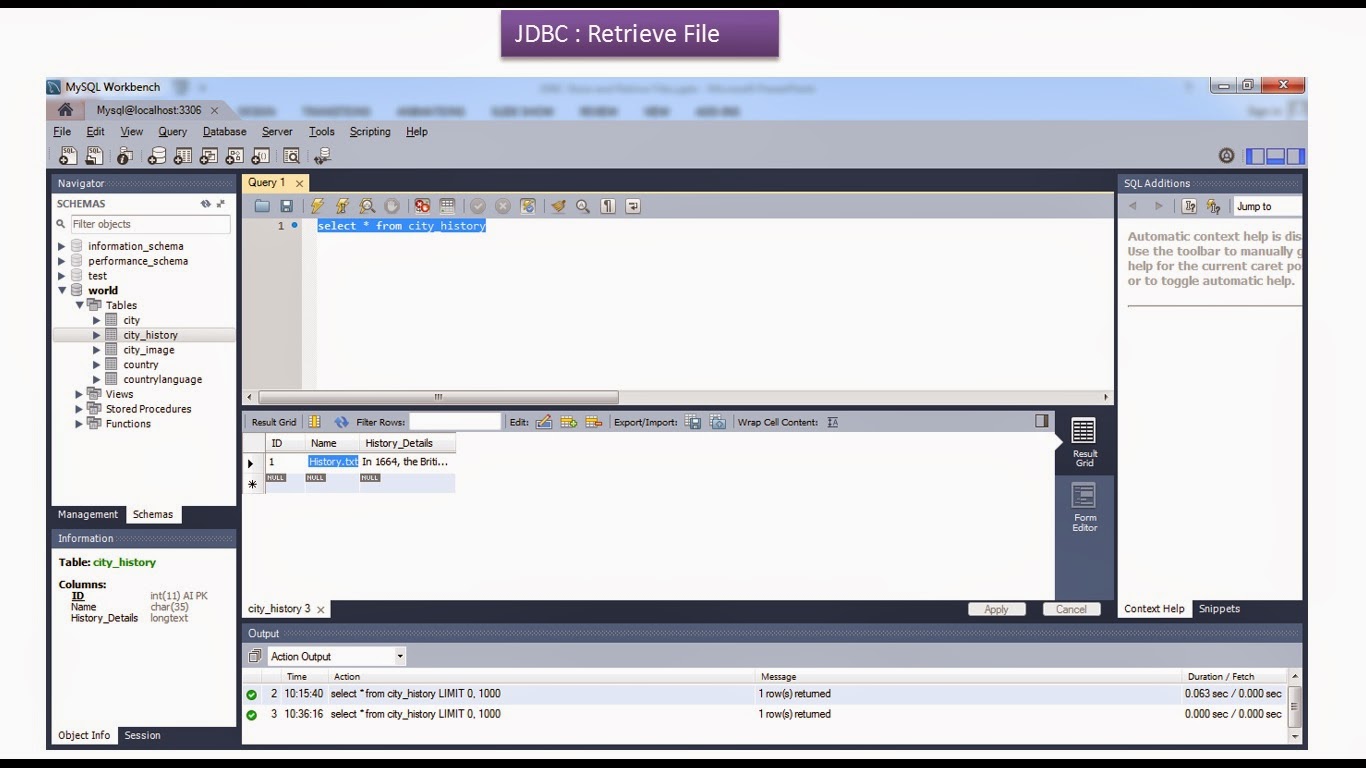
JDBC : Retrieve File

🚀 Master Java database programming, JDBC BLOB/CLOB handling, and MySQL!

🔔 Subscribe to Ram N Java on YouTube

Reading Large Files and Documents from MySQL with JDBC

Databases frequently store documents, configurations, text files, and binary assets inside character or binary columns such as TEXT, LONGTEXT, CLOB, or BLOB.

In JDBC, you can retrieve these files by fetching them as a character stream using getCharacterStream() or as a reader from the ResultSet. By piping the stream through a FileWriter or FileOutputStream, your Java application can export and reconstruct the exact file onto your local filesystem.

The MySQL Database Table Structure

Consider a table designed to store file details along with text content or file data:

CREATE TABLE `file_repository` (
    `id` INT NOT NULL AUTO_INCREMENT,
    `file_name` VARCHAR(255) NOT NULL,
    `file_data` LONGTEXT,
    PRIMARY KEY (`id`)
);

Complete Java Source Code Example

The following Java application connects to MySQL, queries the record containing the stored file data, streams the content using a Reader, and writes it directly to a local target destination:

package com.ram.jdbc;

import java.io.File;
import java.io.FileWriter;
import java.io.IOException;
import java.io.Reader;
import java.sql.Connection;
import java.sql.DriverManager;
import java.sql.PreparedStatement;
import java.sql.ResultSet;
import java.sql.SQLException;

public class RetrieveFileFromDBDemo {

    static final String JDBC_DRIVER = "com.mysql.jdbc.Driver";
    static final String DB_URL = "jdbc:mysql://localhost:3306/world";
    static final String USER = "root";
    static final String PASS = "root";

    public static void main(String[] args) {
        RetrieveFileFromDBDemo demo = new RetrieveFileFromDBDemo();
        // Retrieve file for record ID 1 and save to destination directory
        demo.retrieveFile(1, "output_retrieved.txt");
    }

    public void retrieveFile(int recordId, String outputFileName) {
        Connection conn = null;
        PreparedStatement pstmt = null;
        ResultSet rs = null;
        FileWriter writer = null;
        Reader reader = null;

        try {
            // Step 1: Register driver and establish connection
            Class.forName(JDBC_DRIVER);
            conn = DriverManager.getConnection(DB_URL, USER, PASS);

            // Step 2: Prepare query to fetch the file record
            String sql = "SELECT file_name, file_data FROM file_repository WHERE id = ?";
            pstmt = conn.prepareStatement(sql);
            pstmt.setInt(1, recordId);

            // Step 3: Execute query
            rs = pstmt.executeQuery();

            if (rs.next()) {
                String originalFileName = rs.getString("file_name");
                System.out.println("Found record for file: " + originalFileName);

                // Step 4: Stream character data using Reader
                reader = rs.getCharacterStream("file_data");

                File outputFile = new File(outputFileName);
                writer = new FileWriter(outputFile);

                int character;
                while ((character = reader.read()) != -1) {
                    writer.write(character);
                }

                System.out.println("File successfully downloaded and saved to: " + outputFile.getAbsolutePath());
            } else {
                System.out.println("No file found with ID: " + recordId);
            }

        } catch (ClassNotFoundException | SQLException | IOException e) {
            e.printStackTrace();
        } finally {
            // Step 5: Clean up IO and database resources safely
            try {
                if (writer != null) writer.close();
                if (reader != null) reader.close();
                if (rs != null) rs.close();
                if (pstmt != null) pstmt.close();
                if (conn != null) conn.close();
            } catch (SQLException | IOException se) {
                se.printStackTrace();
            }
        }
    }
}

Key Steps & Best Practices

  • Stream Large Payloads: Avoid loading massive text or binary records entirely into memory strings; use rs.getCharacterStream() or rs.getBinaryStream() instead.
  • Chunked Writing: Reading and writing byte-by-byte or via buffer arrays ensures your application consumes negligible heap memory even with large files.
  • PreparedStatement Safety: Always use parameterized SQL statements to filter file IDs safely.
  • Thorough Cleanup: Ensure both stream readers/writers and database resources (ResultSet, Statement, Connection) are closed in the finally block.

Related Tutorials You Might Enjoy


Click here to watch in Youtube : https://www.youtube.com/watch?v=MAgdMFodV0Q

Click the below Image to Enlarge
JDBC : Retrieve File

JDBC : Retrieve File

JDBCRetriveFileDemo.java
import java.io.FileWriter;
import java.io.Reader;
import java.sql.Clob;
import java.sql.Connection;
import java.sql.DriverManager;
import java.sql.PreparedStatement;
import java.sql.ResultSet;
import java.sql.SQLException;

public class JDBCRetriveFileDemo
{
    // JDBC driver name and database URL
    static final String JDBC_DRIVER = "com.mysql.jdbc.Driver";
    static final String DB_URL      = "jdbc:mysql://localhost:3306/world";

    // Database credentials
    static final String USERNAME    = "root";
    static final String PASSWORD    = "root";

    public static void main( String[] args )
    {
        JDBCRetriveFileDemo jdbcRetriveFileDemo = new JDBCRetriveFileDemo();
        jdbcRetriveFileDemo.retriveFile();
    }

    private void retriveFile()
    {
        Connection connection = null;
        PreparedStatement preparedStatement = null;
        try
        {
            /*
             * Register the JDBC driver in DriverManager
             */

            Class.forName(JDBC_DRIVER);

            /*
             * Establish connection to the Database using DriverManager
             */

            connection = DriverManager
                    .getConnection(DB_URL, USERNAME, PASSWORD);

            String sql = "select * from CITY_HISTORY";

            /*
             * Execute the query
             */
            preparedStatement = connection.prepareStatement(sql);
            ResultSet rs = preparedStatement.executeQuery();

            while( rs.next() )
            {
                String name = rs.getString(2);
                Clob cityHistoryClob = rs.getClob(3);
                Reader reader = cityHistoryClob.getCharacterStream();

                FileWriter fw = new FileWriter("D:/Downloads/" + name );

                int i;
                while( (i = reader.read()) != -1 )
                {
                    fw.write((char) i);
                }
                System.out.println("D:/Downloads/" + name +" has saved");
                fw.close();
            }

            rs.close();

        }
        catch( SQLException se )
        {

            se.printStackTrace();
        }
        catch( ClassNotFoundException e )
        {
            e.printStackTrace();
        }
        catch( Exception e )
        {
            e.printStackTrace();
        }
        finally
        {
            /*
             * finally block used to close resources
             */
            try
            {
                if( preparedStatement != null )
                {
                    preparedStatement.close();
                }
            }
            catch( SQLException sqlException )
            {
                sqlException.printStackTrace();
            }
            try
            {
                if( connection != null )
                {
                    connection.close();
                }
            }
            catch( SQLException sqlException )
            {
                sqlException.printStackTrace();
            }
        }

    }
}

Output
D:/Downloads/Newyork History.txt has saved

Environment Used 

JDK version : 1.7.0_51
Mysql Server version : 5.6.19 

To Download JDBCRetriveFileDemoApp Project Click the below link

https://sites.google.com/site/javaee4321/jdbc/JDBCRetriveFileDemoApp.zip?attredirects=0&d=1

See also:

  • Servlets Tutorial
  • All Design Patterns Links
  • JDBC Tutorial
  • JDBC : Store File

    🚀 Master Java database programming and file handling hands-on!

    🔔 Subscribe to Ram N Java on YouTube

    Storing Files in Databases Using JDBC

    In real-world applications, you often need to persist file data—such as text documents, configuration files, or logs—directly into relational database tables.

    Relational databases like MySQL support Large Object data types such as CLOB (Character Large Object) and TEXT / LONGTEXT for storing large text files. With JDBC's PreparedStatement and Java I/O character streams (such as FileReader), you can stream and save large files directly into your database efficiently.

    Database Table Structure

    Before running the Java program, create the destination table in MySQL to hold your file and its metadata:

    CREATE TABLE `city_history` (
      `id` INT NOT NULL AUTO_INCREMENT,
      `city_name` VARCHAR(100) NOT NULL,
      `history` LONGTEXT,
      PRIMARY KEY (`id`)
    );

    Java Program: Storing a File Using PreparedStatement

    Here is the complete Java code that reads a local file using FileReader and streams its content into MySQL using setCharacterStream():

    package com.ram.jdbc;
    
    import java.io.File;
    import java.io.FileReader;
    import java.sql.Connection;
    import java.sql.DriverManager;
    import java.sql.PreparedStatement;
    
    public class StoreFileDemo {
    
        static final String DB_URL = "jdbc:mysql://localhost:3306/world";
        static final String USER = "root";
        static final String PASS = "root";
    
        public static void main(String[] args) {
            Connection conn = null;
            PreparedStatement pstmt = null;
            FileReader reader = null;
    
            try {
                // Load MySQL Driver & Open Connection
                Class.forName("com.mysql.jdbc.Driver");
                conn = DriverManager.getConnection(DB_URL, USER, PASS);
    
                String sql = "INSERT INTO city_history (city_name, history) VALUES (?, ?)";
                pstmt = conn.prepareStatement(sql);
    
                // Set city name parameter
                pstmt.setString(1, "New York");
    
                // Locate file and read via FileReader
                File file = new File("history.txt");
                reader = new FileReader(file);
    
                // Stream file content into database column
                pstmt.setCharacterStream(2, reader, (int) file.length());
    
                int rowsInserted = pstmt.executeUpdate();
                System.out.println("File stored successfully! Rows inserted: " + rowsInserted);
    
            } catch (Exception e) {
                e.printStackTrace();
            } finally {
                try {
                    if (reader != null) reader.close();
                    if (pstmt != null) pstmt.close();
                    if (conn != null) conn.close();
                } catch (Exception ex) {
                    ex.printStackTrace();
                }
            }
        }
    }

    Key Takeaways

    • setCharacterStream() allows you to stream character data directly to the database without loading massive files completely into application memory.
    • For binary files (like images, audio, or PDFs), use setBinaryStream() with FileInputStream and BLOB column types.
    • Always properly close the FileReader, PreparedStatement, and Connection to avoid file locks and database leaks.

    Related Tutorials You Might Enjoy


    Click here to watch in Youtube : https://www.youtube.com/watch?v=BMqaLhN2chk

    Click the below Image to Enlarge
    JDBC : Store File
    JDBC : Store File
    JDBC : Store File
    JDBC : Store File
    JDBC : Store File
    JDBCStoreFileDemo.java
    import java.io.File;
    import java.io.FileReader;
    import java.io.IOException;
    import java.sql.Connection;
    import java.sql.DriverManager;
    import java.sql.PreparedStatement;
    import java.sql.SQLException;
    
    public class JDBCStoreFileDemo
    {
        // JDBC driver name and database URL
        static final String JDBC_DRIVER = "com.mysql.jdbc.Driver";
        static final String DB_URL = "jdbc:mysql://localhost:3306/world";
    
        // Database credentials
        static final String USERNAME = "root";
        static final String PASSWORD = "root";
    
        public static void main(String[] args)
        {
            JDBCStoreFileDemo jdbcStoreFileDemo = new JDBCStoreFileDemo();
            jdbcStoreFileDemo.storeFile();
        }
    
        private void storeFile()
        {
            Connection connection = null;
            PreparedStatement preparedStatement = null;
            FileReader fileReader = null;
            try
            {
                /*
                 * Register the JDBC driver in DriverManager
                 */
    
                Class.forName(JDBC_DRIVER);
    
                /*
                 * Establish connection to the Database using DriverManager
                 */
    
                connection = DriverManager
                        .getConnection(DB_URL, USERNAME, PASSWORD);
    
                String sql = "insert into CITY_HISTORY values(?,?,?);";
    
                preparedStatement = connection.prepareStatement(sql);
    
                File file = new File("D:/Downloads/Newyork History.txt");
                fileReader = new FileReader(file);
    
                preparedStatement.setInt(1, 1);
                preparedStatement.setString(2, file.getName());
                preparedStatement.setCharacterStream(3, fileReader,
                        (int) file.length());
    
                int numberOfRowsInserted = preparedStatement.executeUpdate();
    
                System.out
                        .println("numberOfRowsInserted : " + numberOfRowsInserted);
    
            }
            catch (SQLException se)
            {
    
                se.printStackTrace();
            }
            catch (ClassNotFoundException e)
            {
                e.printStackTrace();
            }
            catch (Exception e)
            {
                e.printStackTrace();
            }
            finally
            {
                /*
                 * finally block used to close resources
                 */
                try
                {
                    if (preparedStatement != null)
                    {
                        preparedStatement.close();
                    }
                }
                catch (SQLException sqlException)
                {
                    sqlException.printStackTrace();
                }
                try
                {
                    if (connection != null)
                    {
                        connection.close();
                    }
                }
                catch (SQLException sqlException)
                {
                    sqlException.printStackTrace();
                }
    
                if (fileReader != null)
                {
                    try
                    {
                        fileReader.close();
                    }
                    catch (IOException e)
                    {
    
                        e.printStackTrace();
                    }
                }
            }
    
        }
    }
    
    
    Output
    numberOfRowsInserted : 1
    
    
    SQL
    CREATE TABLE `CITY_HISTORY` (  
    `ID` int(11) NOT NULL AUTO_INCREMENT,  
    `Name` char(35) NOT NULL DEFAULT '',  
    `History_Details` LONGTEXT  NULL ,   
    PRIMARY KEY (`ID`)) 
    ENGINE=InnoDB;
    
    
    Environment Used 

    JDK version : 1.7.0_51
    Mysql Server version : 5.6.19 

    To Download JDBCStoreFileDemoApp Project Click the below link

    https://sites.google.com/site/javaee4321/jdbc/JDBCStoreFileDemoApp.zip?attredirects=0&d=1

    See also:

  • Servlets Tutorial
  • All Design Patterns Links
  • JDBC Tutorial
  • JDBC : Retrieve Image

    🚀 Master Java database programming, JDBC BLOB handling, and MySQL!

    🔔 Subscribe to Ram N Java on YouTube

    Retrieving Binary Image Data (BLOB) from MySQL Using JDBC

    In relational databases like MySQL, multimedia files like JPEG and PNG images are stored as binary data inside BLOB (Binary Large Object) or LONGBLOB columns.

    When reading this binary information back into your Java application using JDBC, the ResultSet provides the getBlob() method. Once you obtain the java.sql.Blob instance, you can extract the raw byte array using blob.getBytes() and reconstruct the file on your local disk using a FileOutputStream.

    Database Table Structure (city_image)

    Consider the following database table schema used to store city images:

    CREATE TABLE `city_image` (
        `id` INT NOT NULL AUTO_INCREMENT,
        `city_name` VARCHAR(50) NOT NULL,
        `photo` LONGBLOB,
        PRIMARY KEY (`id`)
    );

    Complete Java Source Code Example

    The following Java program demonstrates how to fetch the binary image record from MySQL and save it as an image file on your system:

    package com.ram.jdbc;
    
    import java.io.File;
    import java.io.FileOutputStream;
    import java.io.IOException;
    import java.sql.Blob;
    import java.sql.Connection;
    import java.sql.DriverManager;
    import java.sql.PreparedStatement;
    import java.sql.ResultSet;
    import java.sql.SQLException;
    
    public class JDBCRetrieveImageDemo {
    
        static final String JDBC_DRIVER = "com.mysql.jdbc.Driver";
        static final String DB_URL = "jdbc:mysql://localhost:3306/world";
        static final String USER = "root";
        static final String PASS = "root";
    
        public static void main(String[] args) {
            JDBCRetrieveImageDemo demo = new JDBCRetrieveImageDemo();
            demo.retrieveImage();
        }
    
        public void retrieveImage() {
            Connection conn = null;
            PreparedStatement pstmt = null;
            ResultSet rs = null;
            FileOutputStream fos = null;
    
            try {
                // Step 1: Register MySQL JDBC Driver
                Class.forName(JDBC_DRIVER);
    
                // Step 2: Establish database connection
                conn = DriverManager.getConnection(DB_URL, USER, PASS);
    
                // Step 3: Prepare and execute SELECT query
                String sql = "SELECT id, city_name, photo FROM city_image";
                pstmt = conn.prepareStatement(sql);
                rs = pstmt.executeQuery();
    
                // Step 4: Extract BLOB and write to file
                while (rs.next()) {
                    String cityName = rs.getString("city_name");
                    Blob photoBlob = rs.getBlob("photo");
    
                    // Convert BLOB to byte array
                    byte[] imageBytes = photoBlob.getBytes(1, (int) photoBlob.length());
    
                    // Save to local directory
                    File outputFile = new File("D:/downloads/" + cityName + ".jpg");
                    fos = new FileOutputStream(outputFile);
                    fos.write(imageBytes);
    
                    System.out.println("Image successfully exported to: " + outputFile.getAbsolutePath());
                }
    
            } catch (ClassNotFoundException | SQLException | IOException e) {
                e.printStackTrace();
            } finally {
                // Step 5: Clean up file stream and database resources safely
                try {
                    if (fos != null) fos.close();
                    if (rs != null) rs.close();
                    if (pstmt != null) pstmt.close();
                    if (conn != null) conn.close();
                } catch (SQLException | IOException se) {
                    se.printStackTrace();
                }
            }
        }
    }

    Key Steps & Best Practices

    • Retrieve the BLOB: Call rs.getBlob("photo") to obtain the binary column handle as a java.sql.Blob reference.
    • Convert to Bytes: Use blob.getBytes(1, (int) blob.length()) to extract the full binary byte payload (note that JDBC index positions start at 1).
    • Persist to Disk: Use FileOutputStream.write(imageBytes) to write the image file back to the filesystem.
    • Resource Cleanup: Always ensure the file output stream, ResultSet, PreparedStatement, and Connection are closed in the finally block to prevent resource leaks.

    Related Tutorials You Might Enjoy


    Click here to watch in Youtube : https://www.youtube.com/watch?v=JgKiAx3n4ao

    Click the below Image to Enlarge
    JDBC : Retrieve Image
    JDBC : Retrieve Image
    JDBC : Retrieve Image
    JDBC : Retrieve Image
    JDBC : Retrieve Image
    JDBC : Retrieve Image
    JDBCRetriveImageDemo.java
    import java.io.FileOutputStream;
    import java.sql.Blob;
    import java.sql.Connection;
    import java.sql.DriverManager;
    import java.sql.PreparedStatement;
    import java.sql.ResultSet;
    import java.sql.SQLException;
    
    public class JDBCRetriveImageDemo
    {
        // JDBC driver name and database URL
        static final String JDBC_DRIVER = "com.mysql.jdbc.Driver";
        static final String DB_URL = "jdbc:mysql://localhost:3306/world";
    
        // Database credentials
        static final String USERNAME = "root";
        static final String PASSWORD = "root";
    
        public static void main(String[] args)
        {
            JDBCRetriveImageDemo jdbcRetriveImageDemo = new JDBCRetriveImageDemo();
            jdbcRetriveImageDemo.retriveImage();
        }
    
        private void retriveImage()
        {
            Connection connection = null;
            PreparedStatement preparedStatement = null;
            try
            {
                /*
                 * Register the JDBC driver in DriverManager
                 */
    
                Class.forName(JDBC_DRIVER);
    
                /*
                 * Establish connection to the Database using DriverManager
                 */
    
                connection = DriverManager
                        .getConnection(DB_URL, USERNAME, PASSWORD);
    
                String sql = "select * from CITY_IMAGE";
    
                /*
                 * Execute the query
                 */
                preparedStatement = connection.prepareStatement(sql);
                ResultSet rs = preparedStatement.executeQuery();
    
                while (rs.next())
                {
                    String imageName = rs.getString(2);
                    Blob imageBlob = rs.getBlob(3);
                    FileOutputStream fileOutputStream = new FileOutputStream(
                            "D:/Downloads/" + imageName);
    
                    fileOutputStream.write(imageBlob.getBytes(1,
                            (int) imageBlob.length()));
                    
                    System.out.println(imageName + " has been stored in D:/Downloads/" );
                    
                    fileOutputStream.close();
                }
    
                rs.close();
    
            }
            catch (SQLException se)
            {
    
                se.printStackTrace();
            }
            catch (ClassNotFoundException e)
            {
                e.printStackTrace();
            }
            catch (Exception e)
            {
                e.printStackTrace();
            }
            finally
            {
                /*
                 * finally block used to close resources
                 */
                try
                {
                    if (preparedStatement != null)
                    {
                        preparedStatement.close();
                    }
                }
                catch (SQLException sqlException)
                {
                    sqlException.printStackTrace();
                }
                try
                {
                    if (connection != null)
                    {
                        connection.close();
                    }
                }
                catch (SQLException sqlException)
                {
                    sqlException.printStackTrace();
                }
            }
    
        }
    }
    
    
    Output
    New york.jpg has been stored in D:/Downloads/
    
    
    Environment Used 

    JDK version : 1.7.0_51
    Mysql Server version : 5.6.19 

    To Download JDBCRetrieveImageDemoApp Project Click the below link

    https://sites.google.com/site/javaee4321/jdbc/JDBCRetrieve%20ImageDemoApp.zip?attredirects=0&d=1

    See also:

  • Servlets Tutorial
  • All Design Patterns Links
  • JDBC Tutorial
  • Older Posts Home

    Tutorials